Is an LG OLED TV Good for Mac and Gaming? Worth It or Not?
Quick Answer
Yes, an LG OLED TV can be an excellent choice for both Mac and gaming, but it requires careful setup and some compromises. For gaming, it’s outstanding; for Mac, you may face text clarity and burn-in concerns. With the right settings and accessories, it can work well for both.
Why This Happens
LG OLED TVs are popular as large-format monitors because of their perfect blacks, wide viewing angles, and low input lag. However, they weren’t designed as computer monitors, so Mac compatibility can be tricky. Common issues include:
- Subpixel layout: OLED TVs use a different subpixel arrangement than typical monitors, which can cause text to appear fuzzy or color-fringed. macOS doesn’t handle this as gracefully as Windows.
- Scaling and resolution: macOS often defaults to a scaled resolution that may not match the TV’s native 4K, leading to blurry text or UI elements that are too small or large.
- HDMI handshake: Some Macs have trouble negotiating the correct signal with LG TVs, resulting in flickering, black screens, or limited refresh rates.
- Burn-in risk: Static elements like the macOS dock, menu bar, and desktop icons can cause permanent image retention on OLED panels.
- Size and distance: A 48-inch screen at a desk can be too immersive, causing eye strain or neck discomfort if placed too close.
How to Fix It
Here are practical approaches, ranked from free to paid:
- Adjust macOS display settings (free): Set the TV to “PC mode” or rename the HDMI input to “PC” in the LG settings. In macOS, choose the correct resolution (usually 3840x2160) and disable “Overscan” if available. Use a tool like BetterDisplay (free) to enable HiDPI scaling and fix text clarity.
- Enable burn-in mitigation (free): Turn on dark mode, auto-hide the dock and menu bar, set a short screen saver, and reduce brightness. LG TVs also have built-in pixel refresher and screen shift features.
- Use the right cable and adapter (low cost): Ensure you have a certified HDMI 2.1 cable and, if needed, a USB-C to HDMI 2.1 adapter that supports 4K at 120Hz. This solves many handshake and refresh rate issues.
- Improve ergonomics (moderate cost): Mount the TV on a monitor arm or wall to get proper viewing distance and free up desk space. A standing desk can also help you adjust your posture.
- Consider a dedicated monitor (higher cost): If text clarity is critical, a traditional monitor might be better. But for mixed use, the OLED can work with the fixes above.
Products That Help
NB Gaming Monitor Arm for Screen up to 60 inches
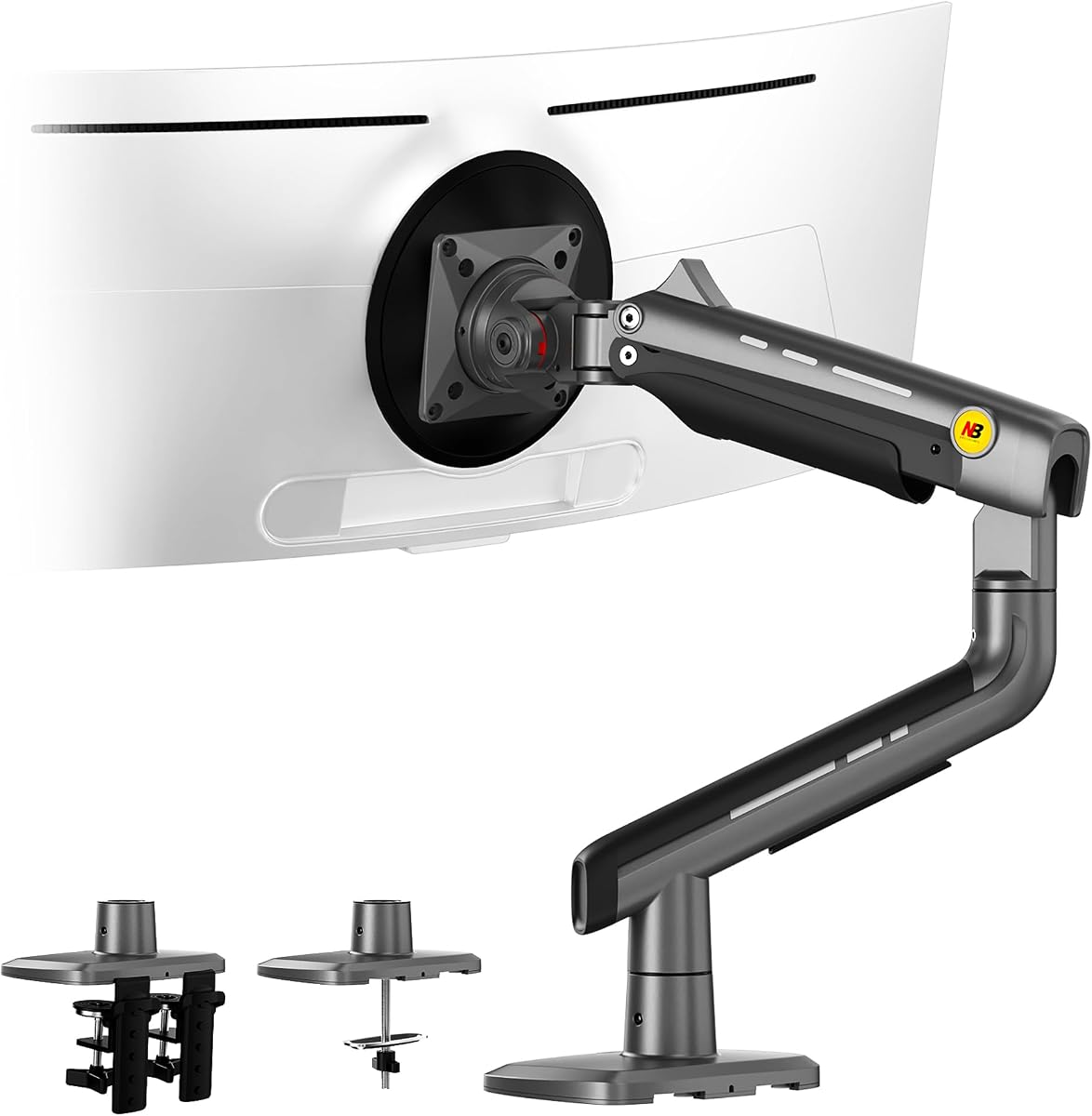
This heavy-duty monitor arm supports screens up to 60 inches and 44 lbs, making it ideal for mounting a 48-inch LG OLED TV. It allows you to adjust height, angle, and distance, which is crucial for achieving a comfortable viewing distance and reducing neck strain. The RGB light adds a gaming aesthetic.
Pros:
- Supports large, heavy TVs up to 60 inches and 44 lbs
- Full height and angle adjustability for ergonomic positioning
- VESA 75/100 compatible and includes RGB lighting
Cons:
- Requires a sturdy desk or wall mount; not all desks can handle the weight
- Installation can be cumbersome for one person
MEKASS Ergonomic Wrist Rest for Keyboard and Mouse

When using a TV as a monitor, your keyboard and mouse are often placed farther away, leading to awkward wrist angles. This wrist rest set provides soft memory foam support to keep your wrists in a neutral position, reducing pain during long typing or gaming sessions.
Pros:
- Soft memory foam for comfort
- Non-slip silicone base keeps it in place
- Set includes both keyboard and mouse rests
Cons:
- May not be thick enough for very tall keyboards
- Classic black may show dust easily
Gimars Upgrade Enlarge Silky and Superfine Fabric Gel Memory Foam Keyboard Wrist Rest Set

This enlarged wrist rest set offers generous surface area and gel-infused memory foam for superior comfort. It’s especially helpful if you’re typing on a Mac keyboard while looking at a large TV, as it encourages proper wrist alignment and reduces fatigue.
Pros:
- Larger size accommodates full-size keyboards
- Gel memory foam provides cooling and support
- Silky fabric is smooth against the skin
Cons:
- Light color may show stains over time
- Gel may feel too firm for some users
SEDETA L Shaped Electric Standing Desk with Hutch

A large TV requires a deep desk to maintain a safe viewing distance. This L-shaped standing desk offers ample space for a 48-inch OLED TV, plus storage for your Mac and gaming gear. The electric height adjustment lets you switch between sitting and standing, which is great for long sessions.
Pros:
- Spacious L-shape with hutch and drawers
- Electric height adjustment for sit-stand versatility
- Sturdy construction supports heavy equipment
Cons:
- Assembly can be time-consuming
- Takes up significant floor space
What to Look For
- HDMI 2.1 support: Essential for 4K at 120Hz with VRR and low input lag. Ensure your Mac or adapter supports it.
- Screen size and desk depth: A 48-inch TV needs at least 30 inches of viewing distance. Consider a 42-inch model if space is tight.
- Burn-in mitigation features: Look for built-in pixel refresher, screen shift, and logo dimming.
- Text clarity: OLED subpixel layout can cause fringing. If you read a lot of text, consider a traditional monitor instead.
- Ergonomic accessories: A monitor arm, wrist rests, and a spacious desk can make the setup comfortable.
- Return policy: Since Mac compatibility can vary, buy from a retailer with a good return policy in case it doesn’t work for you.
FAQ
Can I use an LG OLED TV as a monitor for my Mac? Yes, you can connect a Mac to an LG OLED TV via HDMI, but you may need to adjust settings like disabling overscan, setting the correct resolution, and enabling RGB color format. Some Macs have trouble outputting 4K at 120Hz over HDMI, so a USB-C to HDMI 2.1 adapter may be needed.
Will an LG OLED TV work well for gaming? Absolutely. LG OLED TVs are excellent for gaming thanks to low input lag, high refresh rates (up to 120Hz), HDMI 2.1, and support for VRR and G-Sync/FreeSync. They offer stunning picture quality with perfect blacks.
What are the main problems with using an LG OLED TV with a Mac? Common issues include text clarity due to subpixel layout, potential burn-in from static macOS elements, scaling problems, and HDMI handshake issues that cause flickering or no signal. These can often be mitigated with settings adjustments and careful use.
Is burn-in a concern when using an OLED TV with a Mac? Yes, static elements like the menu bar, dock, and desktop icons can cause burn-in over time. To reduce risk, enable screen savers, auto-hide the dock and menu bar, lower brightness, and use dark mode.
Do I need a special cable to connect my Mac to an LG OLED TV? For best results, use a certified HDMI 2.1 cable. If your Mac has USB-C or Thunderbolt, you’ll need a USB-C to HDMI 2.1 adapter that supports 4K at 120Hz.
Is a 48-inch LG OLED TV too big for a desk? It can be overwhelming at typical desk distances. Many users prefer a depth of at least 30 inches and mounting the TV on a monitor arm or wall to achieve proper viewing distance. A 42-inch model might be more comfortable for close-up use.